
All guides
Get started
Build your menu
Tables and QR codes
Your guests
When something's off
Menus, categories and dishes
Build your menu: categories, dishes with prices, sizes and options, allergens, dietary labels, photos, and what to do when a dish sells out.
Updated November 11, 2026
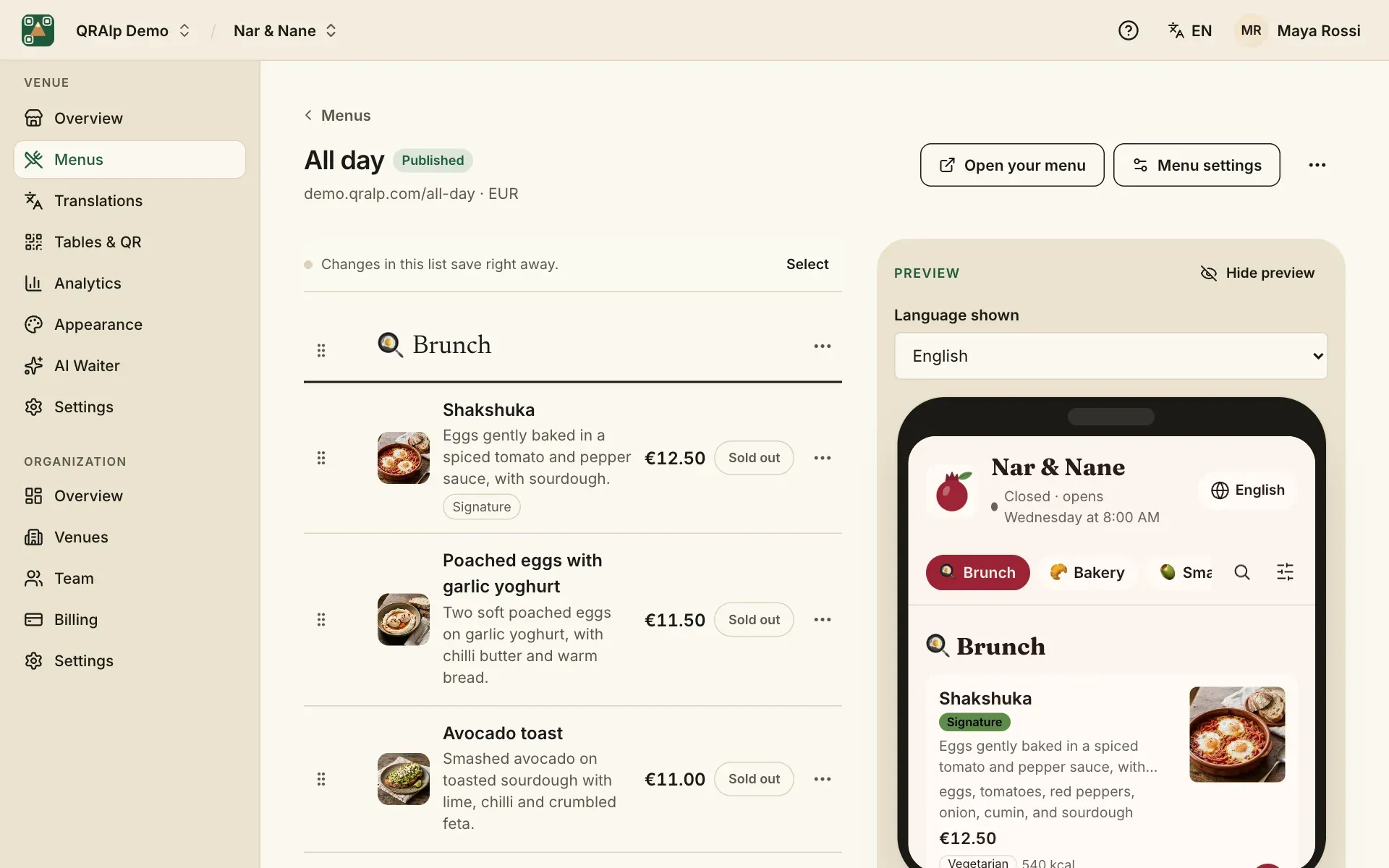
A venue can have as many menus as you like, such as Breakfast, Drinks or Dinner. Each menu holds categories, and each category holds dishes. Open the venue, then Menus.
Create a menu
Start it like your first menu: from scratch, from a template or from your paper menu with AI (see Get started). Choose New menu, give it a name and pick its currency. Under Who can see it:
- Published: guests see it once your venue is live.
- Hidden: only your team sees it. Good for a menu you’re still working on, or a seasonal one.
When a venue has several menus, guests switch between them at the top of the page. Each menu also has its own link, for a QR code that opens it directly. Duplicate menu makes a copy to start from.
Add categories
Categories are the sections guests jump between, like “Hot drinks” or “Starters”. Choose Add category, then give it a name, and if you like an emoji and a short description such as “Served with fries”.
Drag categories and dishes to change their order. Turning off Show on the menu hides a category and its dishes from guests for now.
Add a dish
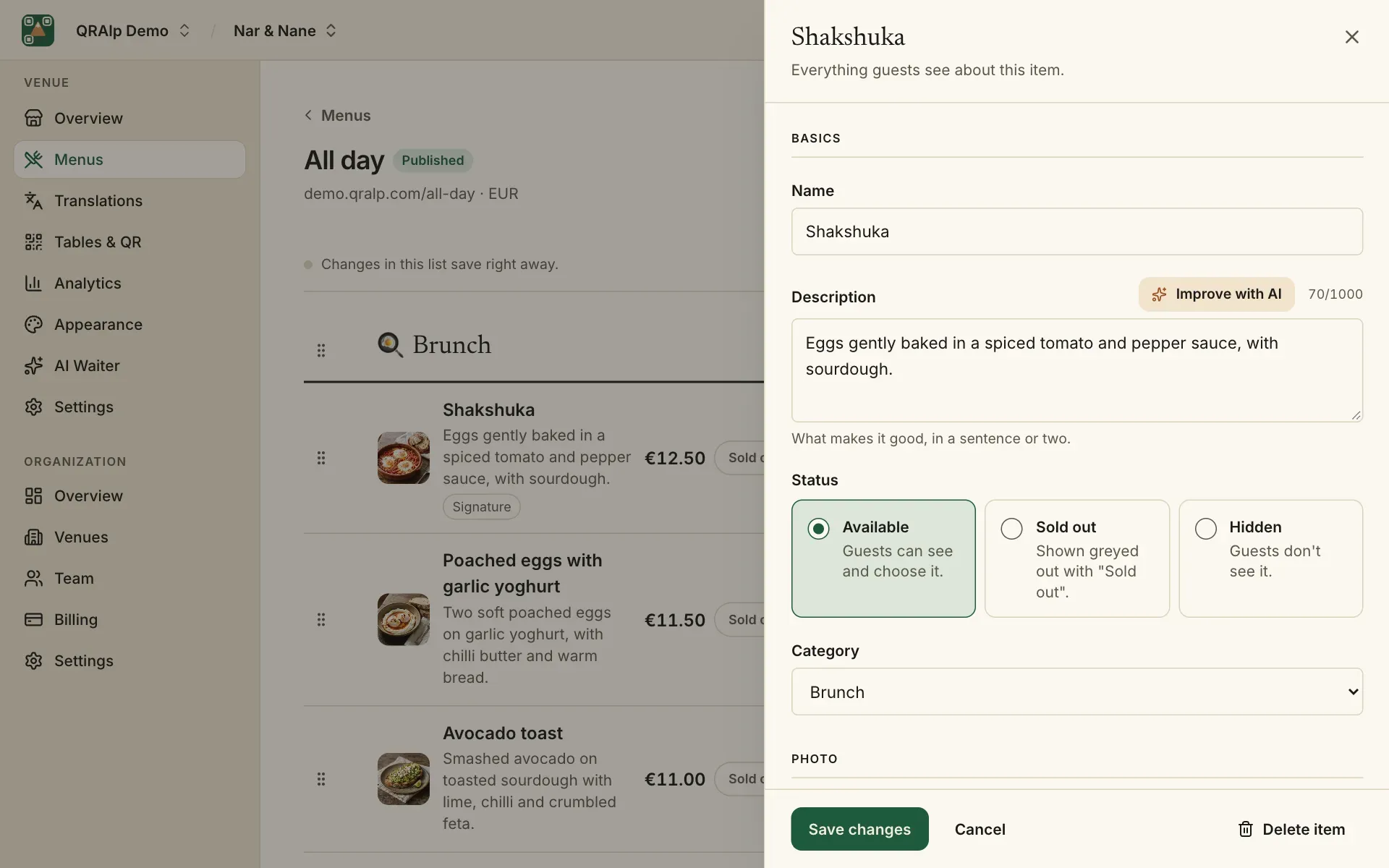
Choose Add item under a category. The dish opens in a panel with everything guests see about it:
- Basics: the name and a sentence or two on what makes it good.
- Price: one price, or several options like “Small” and “Large”, or “Glass” and “Bottle”, each with its own price.
- Photo: upload a photo, or let AI create or improve one.
AI can write the description, suggest ingredients and allergens, and estimate calories. You check each suggestion before it’s saved. See AI features.
Allergens and dietary labels
Mark each of the 14 major allergens as Contains or May contain. Guests can filter your menu by them, so please check them carefully.
Under Dietary and labels, add dietary tags (vegan, gluten-free, halal…), a spice level, and labels like “New” or “Chef’s pick”. Nutrition holds calories.
Sold out, hidden or available
Each dish has a status:
- Available: guests can see and choose it.
- Sold out: shown greyed out with “Sold out”. Use it for the rest of the day.
- Hidden: guests don’t see it.
The fastest way is the dish’s menu in the list: Mark sold out.
See your menu as guests do
Open your menu opens your menu in a new tab. Before you go live, it’s a private link that works for one hour. Once you’re live, changes you save appear on your menu within about a minute.