
All guides
Get started
Build your menu
Tables and QR codes
Your guests
When something's off
Get started with QRAlp
Create your account, add your venue and build your first menu in five short steps. Building is free; your 15-day free trial starts when you go live.
Updated November 16, 2026
QRAlp turns your menu into a page guests open by scanning a QR code, on any phone, with no app. Setting it up takes five short steps, and building your menu is free for as long as you like.
Create your account
Go to platform.qralp.com and fill in Create your account: your name, your email and a password of at least 8 characters.
Your name is only for your team. Guests never see it.
Set up your business
QRAlp first asks for your organization: the company or brand behind your cafés, restaurants or bars. Only your team sees its name. One organization can hold as many venues as you like, all on one plan.
Add your venue
A venue is one café, restaurant or bar, with its own menu link. Give it:
- Venue name: guests see it at the top of your menu.
- Type and Country: we use them to suggest your currency, time zone and wording.
- Menu language: the language you write your menu in. You can add more languages later.
Address, opening hours, Wi-Fi and the rest come later, in the venue’s settings.
Create your first menu
Choose how to start. You can change everything later.
- Start from scratch: name your menu, like “All day” or “Drinks”, and pick its currency. Then type in your categories and dishes. A name and a price is enough to start.
- Start from a template: pick Café, Restaurant, Bar or Bakery and get that kind of place’s usual sections and dishes. Untick what you don’t serve, add your prices, then create the menu. A template never sets a price for you.
- Import your paper menu with AI: take photos of your paper menu, or upload a PDF, and AI types it in for you. You check everything before it’s added. See AI features.
Templates come in QRAlp’s eleven languages. If you write your menu in another one, you get the English template to rename.
Pick a look
Choose one of 8 themes and add your logo. Colors, fonts and layout can all change later in Appearance.
Go live
Your QR code is ready at the last step. Print it now or later: guests who scan it see your menu once it’s live.
To go live, start your 15-day free trial. You add a card on the secure page of Creem, our payment partner, and nothing is charged until the trial ends. Or choose Continue setting up and go live whenever you’re ready, from the venue’s overview.
What to do next
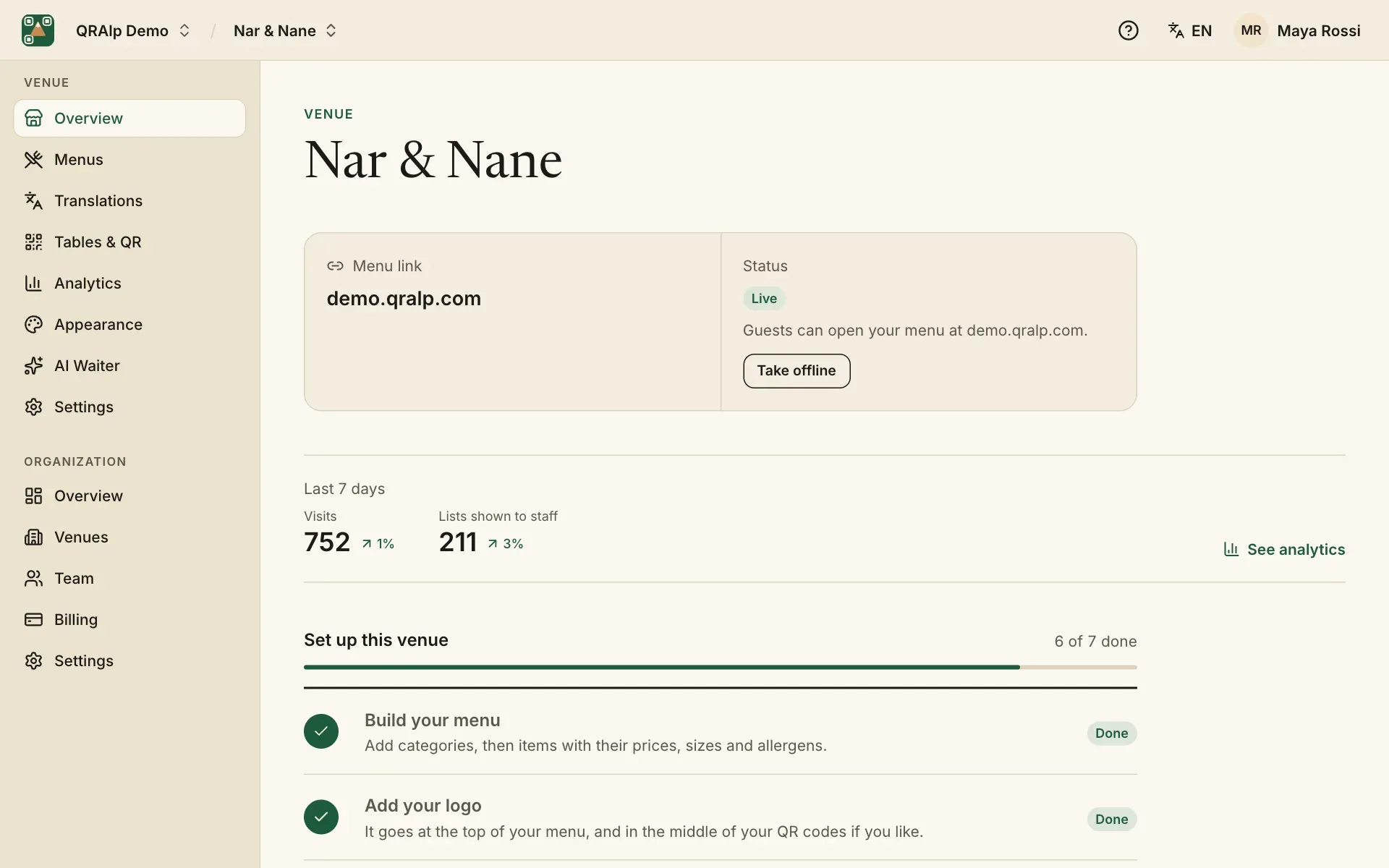
- Work through the setup checklist on your venue’s overview: your logo, opening hours, a second language, QR codes, the AI Waiter and going live. It stays there until everything is done.
- Fill in your venue’s settings: opening hours, address, Wi-Fi.
- Add your dishes with prices, sizes and allergens: menus and dishes.
- Print QR codes for your tables.
- Invite your staff: team and access.