
All guides
Get started
Build your menu
Tables and QR codes
Your guests
When something's off
Change how your menu looks
Pick a theme, match your brand's colors and fonts, choose the layout, and decide what guests can do on your menu: My list, filters, search and more.
Updated November 11, 2026
Appearance sets how all of a venue’s menus look, and what guests can do on them. A preview beside the settings shows your menu with your latest changes.
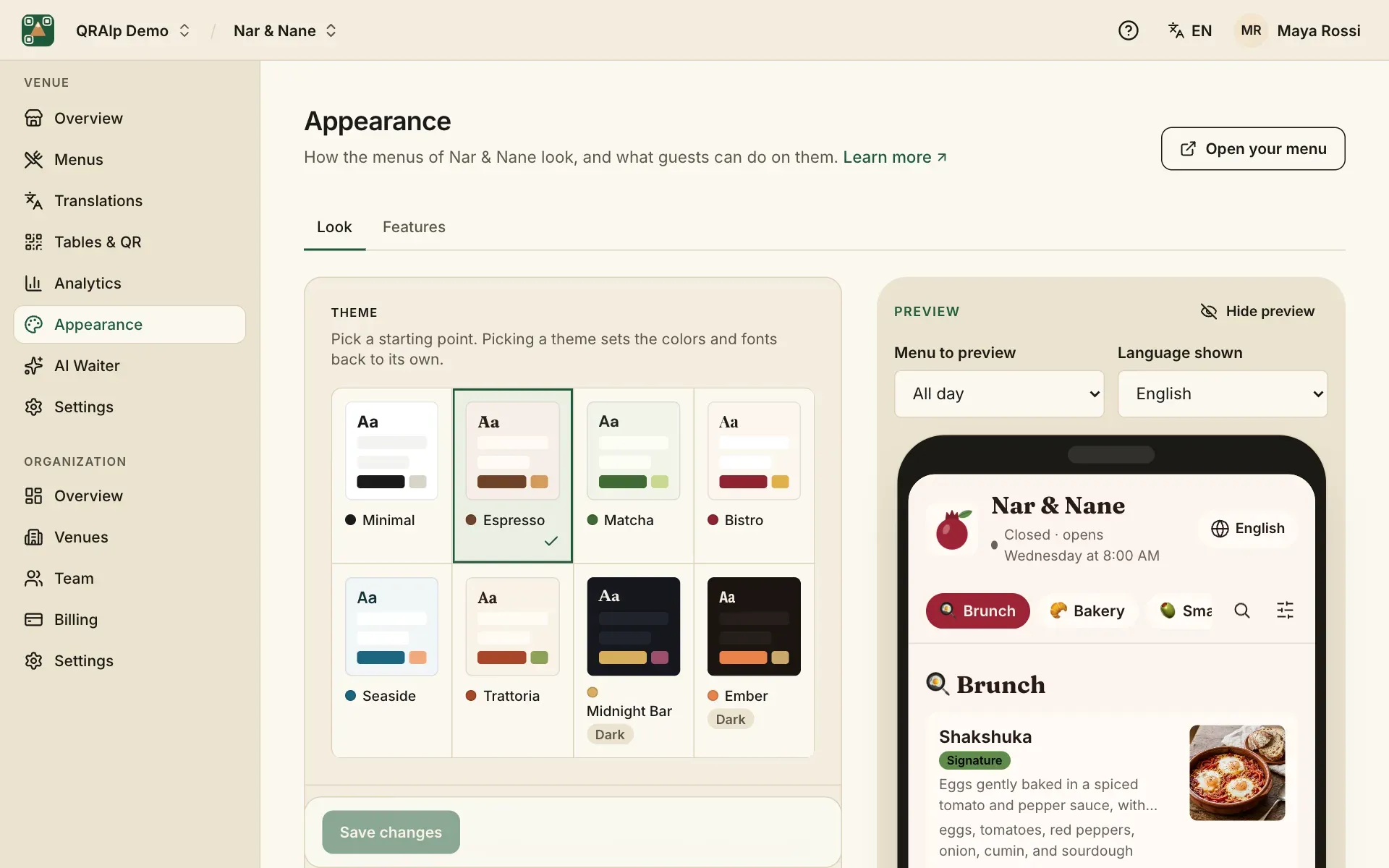
Pick a theme
Start from one of 8 themes, like Espresso, Matcha or Midnight Bar. Picking a theme sets the colors and fonts back to its own, so choose the theme first, then adjust.
Colors and fonts
Change any color to match your brand: Background, Cards, Text, Buttons and Accent. QRAlp tells you when text might be hard to read.
Fonts come as a pair, one for headings and one for text. Languages with other alphabets, like Japanese or Arabic, use the phone’s own fonts.
Layout
Choose how dishes are shown (List with photos, Photo grid or Large photos), how the top of the menu looks, and how round the corners are.
What guests can do
The Features tab switches parts of the menu on or off:
- My list: guests collect dishes in a list with a running total, to show the waiter. There’s no ordering or payment.
- Languages: the language switch, for menus in more than one language.
- Finding dishes: search and filters by allergens and diet, for long menus.
- Dish details: what guests see about each dish.
- Bottom of the menu: hours, address, Wi-Fi and questions at the end of the menu.
- Search engines: whether Google and others may list your menu.
- AI photos: the style of the photos AI makes, so they match.
- AI Assistant: see the AI Waiter.