
All guides
Get started
Build your menu
Tables and QR codes
Your guests
When something's off
Translate your menu
Offer your menu in up to 80 languages: add languages, translate everything with AI in about a minute, then check and edit any translation yourself.
Updated November 11, 2026
Guests read your menu in their own language, from up to 80. You add the languages, AI translates, and you can check and change every word.
Add your languages
Open the venue’s Settings, then Languages. Under More languages, add the languages your guests read. On the menu, guests can switch language, and their phone’s language is offered first.
Translate with AI
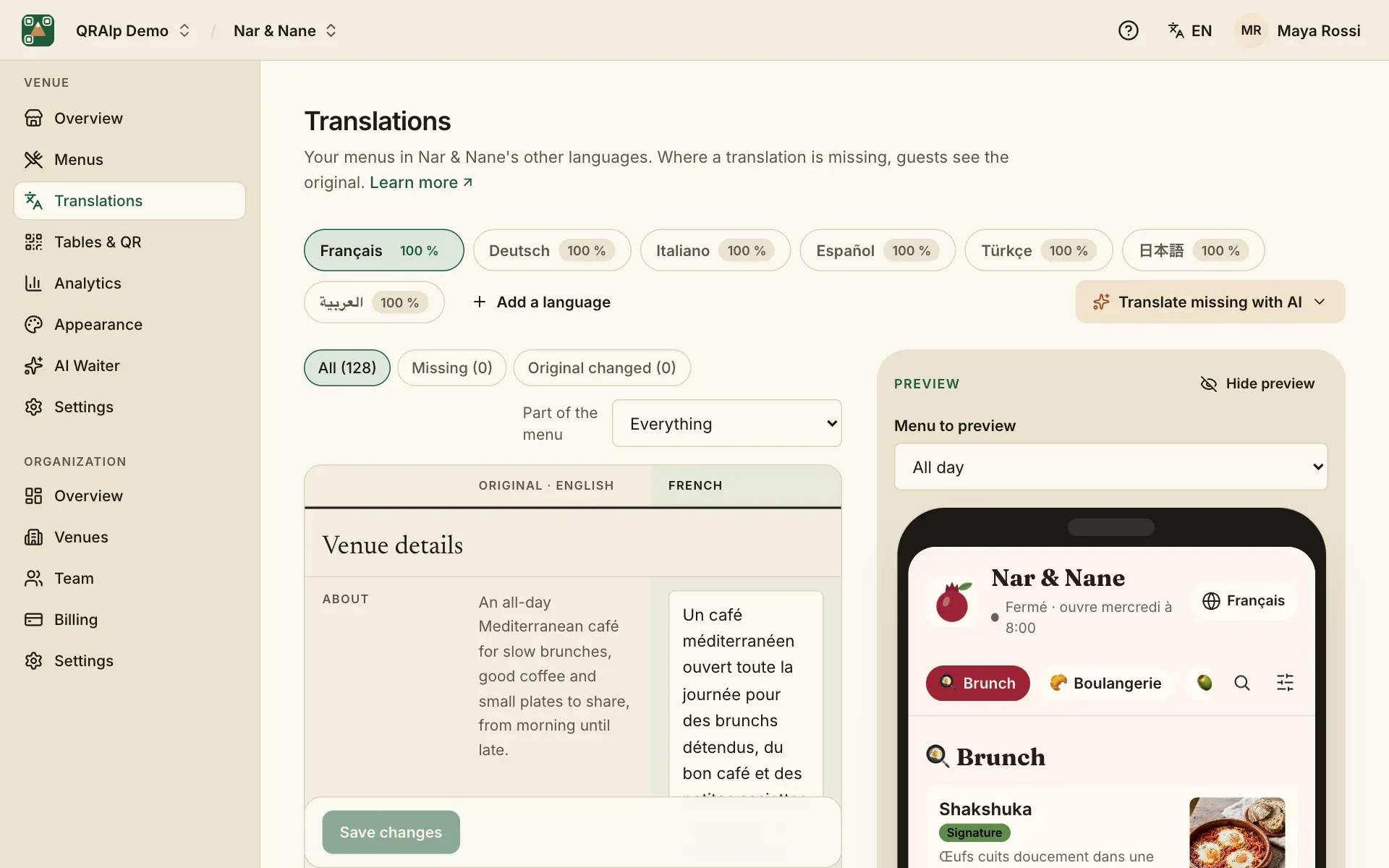
Open Translations. Each language shows how much is translated. Choose Translate missing with AI to translate everything that’s missing: dishes, descriptions, categories, options and your venue’s details.
It takes about a minute for one language, a few minutes for many. You can keep working meanwhile, and QRAlp tells you when it’s done.
Check and edit
Each text shows the original beside its translation. Type over a translation to change it, then save. Use the filters to see only what’s Missing, or what has Original changed. Translations AI made are tagged Translated by AI; guests see no AI mark.
AI translations are good, but you know your dishes best: names of local specialties are worth a look, and so is anything about allergens.
When you change a dish
After you save a change, AI updates its translations by itself about a minute later, and a language you add gets the whole menu. You can switch this off under Languages in the venue’s settings.
A translation you typed yourself is never replaced. When its original changes, it’s marked Original changed: check it, then edit it or choose Keep it.