How to make a QR code menu for your café, step by step
Turn your café's paper menu into a QR code menu in an afternoon: what to prepare, how to build it, how to print the codes and what to check before guests scan.
Getting startedQR codes4 min read
Contents9
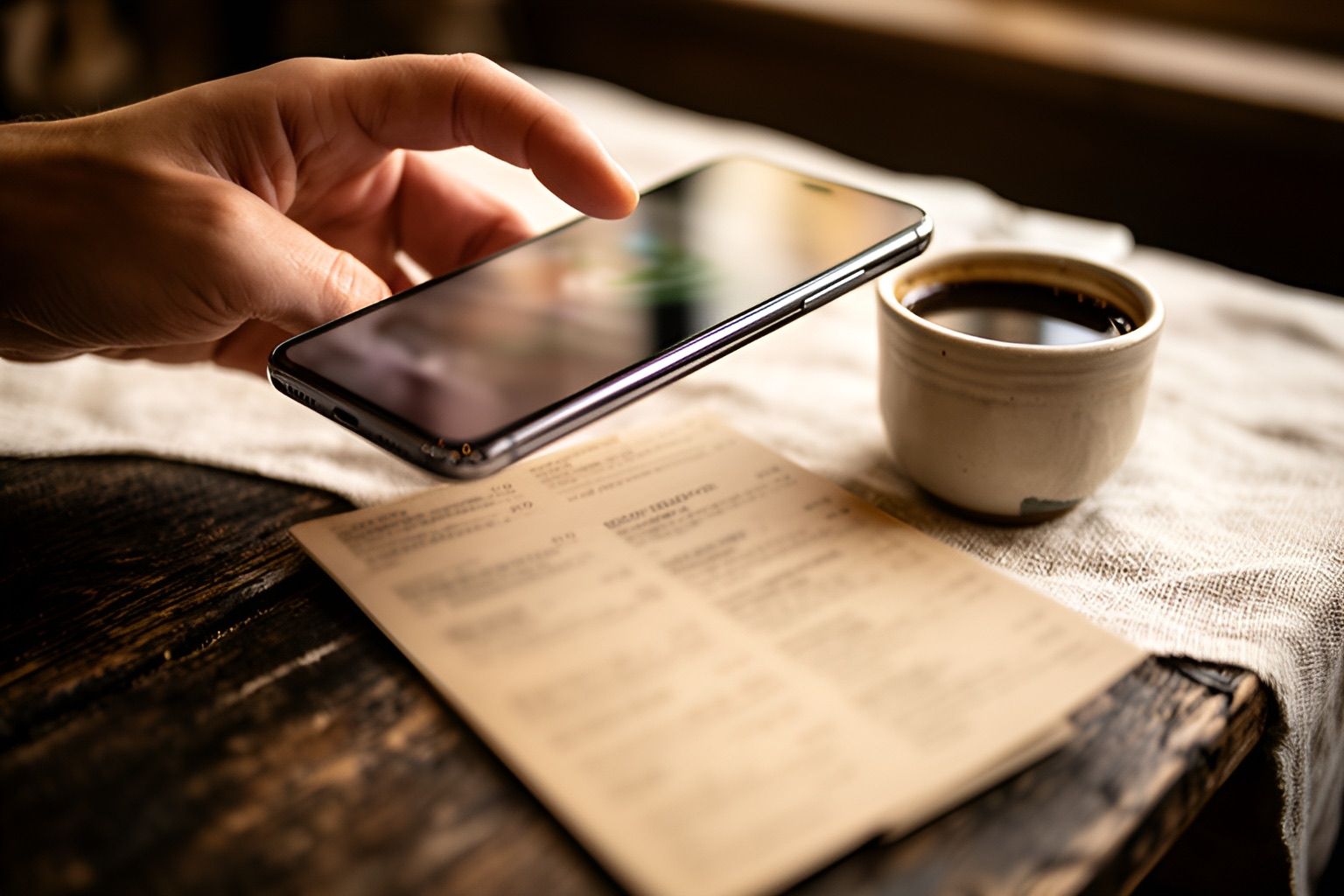
A QR code menu is your menu on your guests’ phones. They scan a code on the table and the menu opens in their browser, with no app and no sign-up. Here is how to set one up for a café in an afternoon, one step at a time.
At a glance
| Step | How long it takes |
|---|---|
| AI reads your paper menu or PDF | About 30 seconds a page |
| AI translates the whole menu | About a minute |
| A change reaches guests’ phones | About a minute |
| Your free trial | 15 days, from the day you go live |
Gather what you already have
You don’t need to start from zero. Before you build anything, put these in one place:
- your current menu, on paper or as a PDF;
- your prices, including sizes such as regular and large;
- the allergens of each dish and drink;
- your logo, and a few photos if you have them;
- your opening hours.
Allergens deserve a few extra minutes. In the European Union, cafés must tell guests about 14 allergens, such as gluten, milk and nuts. A digital menu makes them easy to show on every dish, but only you know what goes into your food.
Build the menu
There are two ways to start, and both take minutes.
Photograph your paper menu. Take up to 10 photos, or upload a PDF, and AI reads it: sections, dishes, sizes and prices. It takes about 30 seconds a page. Before anything is created, you check every dish. AI never guesses a price: when it can’t read one, it asks you to fill it in.
Start from scratch. Add your sections, such as Coffee, Breakfast and Cakes, then your dishes. Give a drink as many sizes as you need, each with its own price.
Add descriptions, allergens and photos
Short descriptions help guests choose. One line is enough: what it is and what makes it good. If writing isn’t your thing, AI can write a first draft in your tone, short, appetizing or elegant, and you edit it.
AI can also suggest allergens, dietary labels and calories from a dish’s name and ingredients. Treat them as suggestions: they stay marked until you check them.
Photos are optional, but guests love them. Use your own, let AI improve their light and background, or make one from the dish’s name.
Make it look like your café
Pick your colors and fonts, add your logo, and choose how dishes are laid out. Your guests see your café’s name and style, never ours: QRAlp puts no branding on your menu.
Add your guests’ languages
If visitors come through your door, add their languages. AI translates the whole menu in about a minute, and guests switch with one tap. You can read more about menu translation and fix any translation by hand.
Print your QR codes
Now design what goes on the tables: table tents, round or square stickers, or a poster for the window, with your logo and colors. A few tips:
- Make one code per table. The menu then knows where guests sit, and their list shows the table number.
- Keep it dark on light. Dark dots on a light background scan best, even in dim light.
- Don’t print it too small. Keep the code at least 2.5 cm (1 inch) wide; bigger is better on a poster.
- Scan it before you print a hundred. Try a couple of phones, at table distance.
The QR code designer checks each code before it makes the print file, and warns you about low contrast or a code that’s too small. For sizes, colors and where to put each code, read QR codes on restaurant tables.
Go live and keep it fresh
Building your menu is free. When you’re ready, you go live and your 15-day free trial starts. After that, one plan covers everything: $49.90 a year or $8.90 a month.
The best part comes later. When a price changes or today’s cake sells out, you change it from your phone. Guests see it within about a minute, and you never reprint.
A short checklist
- Every dish has a price, and every size has its own.
- Allergens are checked by you, not just suggested.
- The menu opens on a phone in your café, on its Wi-Fi and on mobile data.
- Each table has its own code, and you’ve scanned a few.
- A member of your team knows how to mark a dish as sold out.
Want to see the result first? Open the menu of our demo café, Nar & Nane: it was built exactly this way. Still choosing an app? Take these 10 checks into every free trial.